Showing posts with label SSIS 2008. Show all posts

Monday, January 7, 2013

SSIS - Audit Transformation...

In ETL operations/Design it is pretty obivious that there is a lot of need for auditing the data that is bought into Data Mart/Data Warehouse. In certain cases depending on when the data is fed into a Data mart lot of business transformations happen. While working on a SSIS package for one of my projects, i came across a task available in the Data flow of SSIS. The task is called Audit Data flow component. In order to use this component, one needs to attach this component to the out put of a say a input data source. What is essentially being done is, in addition to the input columns that is being derived from the input source, one can add additional ausit columns. For example: In my project I had a Flat file input source, so the first step was to drag and drop the flat file source into the Data flow and setup the path and the input columns. Once this was done, to the output of the flat file source I connected the Audit Data Flow component like the image show below:


Now in order to add the audit columns to the input data source, right click on the audit data flow comonent, the audit transformation editor opens up. In the editor I added the audit columns I needed to be part of the destination data, please see image below:


This Data flow component provides nice addition to capabilities of SSIS , in case one wants to add audit information the data to be stored in Data Mart/Warehouse.

Tuesday, July 31, 2012

SSIS Parallel Processing

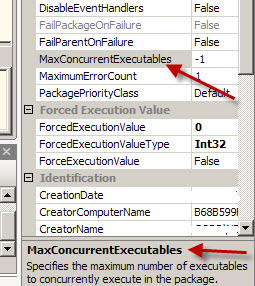
In SSIS one of the key metric that is observed is how well the SSIS packages are performing. The ETL operations become critical to the the availability of data marts/data warehouse which are used for different types of reporting by Business. One of the package level property that is available in SSIS is MaxConcurrentExecutables, please see image below:


Sam Vanga , a MS BI Expert has explained this property in further detail along with some illustrations. The value of -1 is the default setting, it should not be altered without fully understanding the impact of the value.
The link to the artile is here:
http://www.sqlservercentral.com/blogs/samvangassql/2012/07/20/parallel-execution-in-ssis-with-maxconcurrentexecutables/
Hope this article is useful for developers working with SSIS packages.

Thursday, March 8, 2012

SSIS Documentation...

One of the important tasks when there are ETL SSIS packages being developed for a Data Mart/Datawarehouse project is ability to document the SSIS packages. It is sometimes very time consuming to open package by package and then go through all the tasks to understand what is being done in the package. The other issues here is that there is a dependency on Visual studio being present on the laptop/PC. One of the products available to perform this type of task is called SSISDocumentor, this product supports both SSIS 2005 and SSIS 2008. The product can be downloaded from the website:
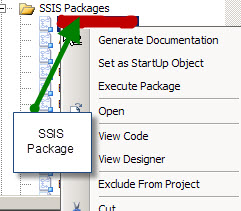
http://www.ssisdocumentor.com/. Once the product is downloaded, the installation is very straightforward. When the installation is complete in case BIDS/Visual studio is already open, save the work and exit out of VS/BIDS. Reopen Visual Studio/BIDS, open up the SSIS project/solution or the package. In the Solution explorer, right click on the SSIS package that requires documentation and once can see the Generate Documentation Option. Please see image below:

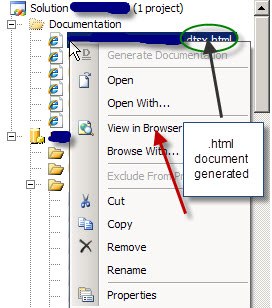
Click on the option, once the document is finished, a folder called Documentation is created and in the folder one can see the package documentation with a .html extension. The neat thing about the .html option is that the documentation can be viewed in a browser. Right click on the .html like shown in the image below and choose view in browser, the documentation will open up in the browser.


There are 2 types of documentation available Brief/Verbose. Each of the task in the SSIS package is depicted in a diagram and one can click on any task, then it takes you detail of the task. The script/sql statements are depicted in a neat way like an editor and once can copy the script/sql statements to the clipboard or any other tool to examine the statements. The documentation tool is very helpful for developers,architects and support folks who need to analyse the package and understand the flow of data from source to destination. This type of SSIS documentation can greatly enhance the stability of an ETL group and in cases where folks leave, it would be very helpful for developers who are coming on board to the team. Snapshot of the documentation below:

Friday, March 2, 2012

Monitoring SSIS packages...

When working on developing a Datawarehouse, there are going to be ETL operations which is going to involve lot of SSIS packages and related objects. One of the key things to keep in mind while building SSIS solutions to make sure there is sufficient auditing of the packages, which would also enable smooth troubleshooting of issues with SSIS packages. In my earlier blog posts I have talked about Logging in SSIS, let us say for example the scale of ETL has increased meaning it spans different servers. Brian Knight founder of Pragmatic Works has come up with Best Practices around monitoring SSIS packages.
Here are the Basic Principles.

Rule #1: Defragment Your Auditing
The better alternative is to create a centralized database to receive all the events from all of your SSIS servers. Then, create a series of reports on top of that centralized database.

Rule #2: Use Event Handlers and Row Counts for Auditing
You will also want to trap Warnings, PostExecute and PreExecute events in the event handler tab. Doing so will allow you to see when a step starts and stops.


Rule #3: Success does not mean Success
Folks who have been developing SSIS solutions can talk to Rule#3. There are situations where data rows would be transferred from the source but rows did not go through to the destination. A rowcount check needs to be performed on the source and destination. In case the row counts do not match send a email/raise a alert, this could avoid costly manual troubleshooting time.


Monday, February 13, 2012

SSIS-SQL Server Configuration

During a training session of SSIS, the topic being covered was configurations and the different types associated with it.One of the commonly used configuration types is SQL Server Configurtion. During the Demo, the SQL Server connection was chosen (Which had the SSISConfigurationsData Table) and the appropriate filter. Further steps were performed and finally clicked the finish button, there was an error like
"Could not complete wizard actions, Cannot insert configuration information into the Configuration table".  It was kind of unusual to get this error because normally while performing SQL Server configurations I have not run into this error. I started to research the issue and examined the Structure of the SSISConfigurationsData table. The configured values (all the connection strings, variable values) get into the column called ConfiguredValue, the column length was at 255 chars max. In order to address the issue there are two options.

1. Change the column length to more than 255, for example say 1000.
2. One of the properties that could be configured is the connection string of the connection manager within a SSIS package. The connection manager has a property called Application Name. (Andy Leonard SSIS expert has detailed this property in this link: http://sqlblog.com/blogs/andy_leonard/archive/2012/02/09/ssis-snack-name-those-connections.aspx). In case the Application Name default is chosen/set, the connection string could end up being pretty long exceeding the 255 character limit on the configuredvalue column. Care needs to be taken while setting the Application Name property in the Connection Manager.


Thursday, February 2, 2012

SSIS-Derived Column

The Data Flow task within SSIS has several task components, some of the components can be very useful while performing ETL operations. One of the common task that is done would be is audit the source data that has been loaded in terms of the number of rows at source and the number of rows that actually got loaded in destination. The Derived Column task in the Data Flow is one of the very useful components which enabled one to add more meaningful information to the destination database on top of what is already being imported from the Source. The power of the Derived columns lies in that fact it can work on columns which are being provided as inputs to this task, the task can also work on System and User defined variables and columns can be generated based on expressions. Here  I would like to show by an example as to how a column can be generated based on a expression. For example if one needs to have a Status column generated which in turn will be mapped to a column on a Sql Server table, look at the snapshot below.

In the figure above a Column called Status is generated based on the Expression "Success". In the following example Derived columns are also generated based on user defined and system variables:


From the above snapshot several columns have been derived from variables, all of these can be mapped to a table say in sql server database and the data can be loaded.  When the derived column is connected to a OLE DB Destination task, all the derived columns would be available for mapping.

Monday, December 12, 2011

SSIS-SCD Type 1 & Type 2

One of the important tasks in an ETL process which supports a Datawarehouse/DataMart is to load data into dimension tables. As per Kimball methodology there are three types of Dimensions like type 1, type 2 and type 3. The most discussed and often implemented is the Type 1 and Type 2 Dimensions. To get a quick overview of the two types: Type 1 dimensions are usually static, in case there are updates the old values are just overwritten. In case Type 2 or slowly changing dimension there is usually a historical record of what changed in the Dimension. A good example of this could agents working for a Team Manager in a Call center. A agent could have his Team Manager re-assigned and this change would have to captured in the data mart and that is where Type 2 dimensions come in. In SSIS in order to facilitate the loads of Type 1 and Type 2 dimensions, we have the SCD wizard which can be used. On walking through the wizard, one can set up Changing attributes and Historical attributes. Once this task is finished, a data flow is generated to handle Type 1 and Type 2 Dimension loading. In the image below one can notice the OLE DB Command Component being used by SCD component.


As it has been discussed in a lot of articles,blogs, the SCD component does not scale very well. There have been performance issues with using the SCD component straight out of the box. One of reasons could be the fact that the SCD component uses the OLE DB Command component to perform updates of rows, these rows are updated one row at a time. The time to update the rows can significantly increase if there are a lot of changes that are to be processed. In fact even while performing incremental inserts or updates to tables in general OLE DB command component can take up quite a bit of time in order to process the rows.
One of the methods to alleviate performance is to use a temporary/staging table where in all the changes are loaded in the destination database. Once this data flow is complete, use a stored procedure to merge the changes into the actual destination table. In the Stored procedure one could take advantage of the MERGE T-SQL command to insert/update records into the destination table by using the temporary/staging table. In the image below one can notice that the OLE DB Command component has been replaced by the OLE DB Destination component.


To finish this up, in the contro flow we would have a Execute SQL task to perform the Merge operation. Here is a visual of the Flow.


Thursday, October 20, 2011

SSIS-Package Configuration

When working with SSIS packages, one of the aspects that need to be designed also is how to lyout the configuration for the Package. This relates to storing certain aspects of the packages like variable values, database connections, flat file/ftp connection information. The are different ways to perform configurations, the one that is being talked about here is using SQL Server Configuration. First when one right clicks on the area of the package in the control flow task, the package configuration shows up, on choosing the user is presented with a wizard. In the Package Configuration organizer window check the Enable package configurations and choose Add...In the Select Configuration Type Window Choose Configuration Type as SQL Server, in the Connection Drop down, the connection should point to the sql server database where the table SSISConfiguration data table is going to reside, next choose the SSIS configuration table, the next one is the configuration filter, this is the one which points to the different variable values, and database connection strings which are going to be used by the package. Here is an image of the Configuration window.

Once the filter is chosen, click on the Next button and choose the properties of the variables that need to be stored in the SSIS Configurations table.

In this example, the Filter Intproc points to the following rows in the SSIS Configurations table. The PackagePath Column has the variable names in the SSIS package, whose values are being stored.


Tuesday, October 11, 2011

SSIS Script Component...

Recently I used a Script Component in the data flow task within SSIS. I decided to use the component has a means to do data transformation. There are lot of different ways to do transformation within SSIS, but i just wanted to check out how SSIS Script component performs. Here is a link to Linkedin MSBI group where i had posted a question on how script component would perform: Lot of folks have suggested different strategies on how to go about the data transformation.
Link:(SSIS Script Component Discussion)
http://www.linkedin.com/groupItem?view=&gid=59185&type=member&item=73910791&qid=20824120-bb37-4de1-ba8b-1d86a23979ea&trk=group_most_popular-0-b-ttl&goback=%2Egmp_59185

When one drags a script component on to the Data flow task editor, here is the screen dialog that pops up.

Suggested Alternatives for Script Component:
Use T-SQL MERGE operator.
Use Combination of LOOKUP and Conditional Split to figure out new records/changed records.
Use EXECUTE SQL task and call a stored procedure to perform data transformation.

Wednesday, October 5, 2011

Union All-SSIS

One of the requirement i had was to combine multiple inputs into one input and then push the data into a table on a sql server database. In the Data Flow Task, there were different components which were sending outputs, all of these outputs had to be combined. In order to address this I used the UNION ALL task in the Data flow. The UNION ALL task can take multiple inputs and can be combined into one.  The UNION ALL task does not have too many properties , it is a very simple component which is available in SSIS. I have enclosed a graphic below which shows how it was used in the Data Flow task.  The image below shows one input into UNION ALL:


Multiple Inputs:


At times the UNION ALL task can be used to get inputs from different Conditional Split task outputs, this can be used in Testing scenarios to see if the rows are being branched out correctly.


Wednesday, August 31, 2011

Loading Mutliple Files (Contd..)

I had mentioned in my previous post on how to handle auditing of multiple files. While auditing the file loads, the name of the file loaded is stored in a sql server table once the data flow is completed successfully.
Within the For Each Loop Container, I added a execute sql task after the data flow task. The execute sql task takes in the user defined variable sFileName and passes it as a parameter to an INSERT statement. This can be modified into a stored procedure in case there need to be more details added about the file loaded. Once the execute sql task runs it inserts the value of the user defined variable into a table. The table can be queried to find out what files have been loaded successfully. I have included the image of the Control Flow below.
The name of the execute sql task is Audit FileNames.

Monday, August 29, 2011

Loading Multiple files...

Recently I came across a scenario where in i had to load multiple excel files into a database table in sql server.The excel files reside in a folder from where these files need to be loaded into a sql server table. At first i worked on the data flow task where i import one excel file into the table. The reason being i need to build out the connection string for the excel source. I dragged a Excel source to the data flow task editor and a OLE Db destination data source. I set the source folder and the file for the excel source and also choose the first row has column names option.

This sets the connection for the excel source like this:
Provider=Microsoft.Jet.OLEDB.4.0;Data Source=C:\Ramdas\SSIS\Sheet1.xls ;Extended Properties="EXCEL 8.0;HDR=YES";
Once the excel source is set, connect it to the destination and do the required mappings for the destination table. Test the data flow task to make sure the data from a single excel can be imported.

In the Control flow editor, create a string variable called sfilename of type string and set the value of this to the excel file with the path (In this example: "C:\Ramdas\SSIS\Sheet1.xls), make sure the scope of the variable is at the package level.

Drag an For Each Loop Container, make sure the data flow task is inside the container. Edit the For Each Loop Container, choose the ForEach file enumerator in the Collection window, choose the file path and choose the option Full qualified under retrieve file name. In the variables section choose the variable sFilename and set the index to 0.


In the Data Flow task editor, right click on the Excel Connection Manager,Choose Properties, within the properties choose Expressions. In the Expressions dropdown Choose connection string. In the expression editor window copy and paste the Connection String of Excel connection manager, replace the fully qualified name with the user defined variable. The expression should be like the following:
"Provider=Microsoft.Jet.OLEDB.4.0;Data Source=" + @[User::sFilename]+" ;Extended Properties=\"Excel 8.0;HDR=YES\";"

The backslash in this expression is critical since they are the escape characters. When the evaluate expression is clicked the following statement should appear:
Provider=Microsoft.Jet.OLEDB.4.0;Data Source=C:\Ramdas\SSIS\Sheet1.xls ;Extended Properties="Excel 8.0;HDR=YES";
Once the expression is tested, click ok.

Now going back to the Control Flow the ForEach Container can be executed and multiple files within the source folder would be loaded to the database. In order to make sure that multiple files are loaded one can create an other table in the sql server database and capture the value in the user defined variable into a table.

I would like to thank the author of the blog,Matthew Roche: http:\\bi-polar23.blogspot.com.

Friday, August 5, 2011

Data Viewer (SSIS)...

When designing and testing on data flow task, one of the aspects that is tested is how the data is getting from source to destination data source. While testing the SSIS packages one might encounter issues in the data flow task, one of the options available is the Data Viewer. This option can be chosen in the data flow task of an SSIS package. With the Data flow task, right click on the connector which connects the source and destination data sources. Choose the Data Viewer Option, this would open up the Data Flow Path Editor.


On the left side of the window there is a option for Data Viewer, highlight it and click the Add button. This would open up the Configure Data Viewer Window. This window has two tabs General and Grid. In the General tab one can choose from four types:
Grid,Histogram,Scatter Plot(x,y),Column Chart.


Except for the Grid option the other three options give an idea o\about the data in a graphical format. In the Grid tab one can configure what columns need to be displayed in the Data Viewer. Once the columns are chosen and click the OK button and exit out of the data flow path editor, the data viewer is ready for use. When the data flow executes the configured data viewer pops up with the column headings and data in a grid.
DataViewer Popup window:

Wednesday, July 27, 2011

SSIS-Transfer SQL Server Objects...

I was working on a project where in i had to convert the DTS packages which copied data from source tables into destination tables (both SQL Server Databases) into SSIS packages. One of the tasks used in the SSIS package was the Transfer SQL Server Objects task. In this task certain tables had to be copied from source Sql Server DB to Destination Database. In the Transfer SQL Server Objects task editor (this can be opened by highlighting the task, right click on it and choose the Edit... Option), there is an option called TableList Under the ObjectsToCopy Section which is under the Destination Copy Options ( which is part of the Objects Section). When one clicks on the three dots one can see the table list and the tables that need to be copied can be checked.

In case the number of tables is large and in case one wants to find out which tables have been choosen to be copied over, there is easier way to look at the members in the table collection. One has to highlight the Transfer SQL Server Objects task and right click and choose properties. In the list of properties choose the TableList under the Misc Category and click on the three dots, one gets to see the following window which shows the tables that have been selected, for the purpose of confidentiality i have erased the table names in the graphic.

I wanted to highlight the use of properties for this task to view the Collection of the tables.

Thursday, May 12, 2011

SSIS 2008-Data Conversion...

Recently I was working on getting data from a Excel spreadsheet into a Sql Server table. The excel sheet had the column names in the first row and the data set was medium in size in sense that it was about a few thousand rows.  I built a SSIS package with a Data flow task which had a Excel Data Source and a OLE DB Destination for the Sql Server Database. I  set up the data flow task with the mappings and did a test run of the SSIS package. During the execution there were data loading errors due to data type issues. On further research i found that the data type on excel spreadsheets were of UNICODE type and these were getting into non-unicode columns on the Sql Server table and this caused the error. In order to fix this issue I used the data conversionn task. The data conversion task is available in the data flow editor and usually sits after the source data connection. This means that the output of the source data is connected with the Data conversion task. Right click on the data conversion task and choose edit, this brings up a window which shows the list of columns in the data source. One check on the columns that need to be converted from to unicode to non-unicode. Here is a snapshot of the data conversion task editor: First Choose the input column, then rename the output alias if needed, then choose the non-unicode data type you want the source data to be converted to, repeat the steps for all the input columns that are selected and then click ok.

Once the Data conversion task editing is complete, connect it to the ole db destination. Here is an illustration of the data flow task with the Data Conversion task included.

Friday, July 9, 2010

SSIS 2008-Conditional Split

Initially in the SSIS packages which were developed,  I used a lot of Execute SQL Tasks which had calls to stored procedures. Then there were business changes I had different data sources to pull the data from. This led me to use different Data Flow Transformations in the Data Flow Task. One of them i used was the Conditional Split transformation. This transformation can be used to go through a dataset row by row and perform checking on different columns and create different output paths. In my Data flow, I had data coming from a sql server table, the data had 5 columns. Based on the CustomerType column I had to direct the output to different data sources, In my case i had to create 2 different text files as outputs. When you right click on the conditional split task and click edit, the Conditional Split Transformation editor opens up. In this editor one can create Different ouput streams and give the conditions for each output, also there is a default ouput name. The conditional split editor provides different functions which can be used in conditions. Data Transformations tools provide neat ways of performing transfomations but at the same time one has to test the performance of these tasks before deploying to production.


Monday, June 28, 2010

Data Export/Import...

Usually I use SSIS to perform Data Import/Export type of activities. Recently I ran into a situation where I had to use the bcp utility to perform the export/import data activity task. The schema's of the the databases involved were identical, the databases were on different physical servers. Initially i used the bcp out command to export the data to text files (with .txt extension), once this was complete I set up the bcp in for the import of data. To my surprise i found that there were errors while importing the data. I expected all of the data to go in since the table definitions were the same, I tried using different flags on the bcp still i did not get it to work, the flag -n was set on the export and the import. At this point i tried a different command to perform the import, I used the BULK INSERT command. The Data Import worked fine, the counts of the source and the destination matched perfectly, the content was intact as well. The import option which i had to use was the Datafiletype = native.

BULK INSERT Testdb.dbo.Test_Table FROM "c:\TestImport\Test\test_table.txt" WITH (DATAFILETYPE ='native')

GO

Thursday, March 25, 2010

PowerShell 2.0 - Capture file names

Powershell 2.0 is a very powerful tool  and certainly can be used for sql server database tasks. One of the rquirement i had was to get the list of filesnames and the lastmodified date in a particular drive/folder, use the most recent file as a excel file source to one of my SSIS packages. One of the approaches as mentioned here was to create a table which will contain the filename and the last modified date. In this case the all the files from different days have the same schema/layout. One of the first thins i did was use a powershell script to look for the file with the given extension and store each of the file and date into the sql server table. I would like to thank Sean McCown for showing how to use the dir command in powershell to find files, described in his blog(http://midnightdba.itbookworm.com/). Here is the script which finds the files, then I loop through the collection and insert records into the sql server table. I developed this in Windows Power ISE editor version 2.0, In this script i look for excel spreadsheets.

add-pssnapin SqlServerCmdletSnapin100

set-location "c:\ssis\"

$query=“INSERT INTO Table_1 SELECT "

$files=dir -recurse -include *.xls

foreach ($file in $files)

{

     $file.name,$file.LastWriteTime

     $fquery = $query + "'"+$file.name+"'"+", "+"'"+$file.LastWriteTime+"'"

     invoke-sqlcmd -query $fquery -database MyDb -serverinstance MyServer
}
 
The above script inserts records into the Table_1 table in the database MyDb. Once this is done in the job step, in the next step I run a query to find the most recent file and use that as the file as an excel source in the SSIS package.

Monday, February 1, 2010

SSIS-Logging

When working with designing and developing ETL processes, one of the important aspects that needs to factored in is the auditing of the ETL process. It is very important to keep track of the flow of process with in ETL. While working with SSIS, it is important to design auditing feature for a SSIS package. There are several ways of auditing SSIS packages, one is use to the SQL Jobs history to figure out if there was an error in the SSIS job step and then troubleshoot the problem. This might not effective way to audit, the other option would be is to create an audit table with in a sql server database and keep inserting records into his table at he beginning and completion of each step. This could be tedious, since there could be lot of calls to the same stored procedure using multiple execute sql tasks. One a new SSIS package is being created, SSIS itself provides logging capabilities. The logging option can be seen by clicking anywhere on the design surface of the SSIS package. When you click on the logging option, the following window pops up, there will be SSIS package and the various tasks in SSIS package on the left. On the right hand side within the window you have two tabs Providers and Logs, Details. When you choose the Provider type there are different types available:

SSIS log provider for SQL Server,
SSIS log provider for Windows Event Log
SSIS log provider for XML Files
SSIS log provider for Text Files
SSIS log provider for Sql Server Profiler
For my project I choose the SSIS log provider for SQL Server, Once this is done check the box next to the option SSIS log provider for SQL Server, then  choose the database connection where the logging will happen, when SSIS package runs it creates a table called sysssislog. In the details tab, choose the Events that need to be tracked, look at the figure below for reference.

Once this is done, click the OK button, Logging is now enabled for the SSIS package. Once the package is executed, look for the table sysssislog in the System databases under the database which was chosen in the Configuration column in the Provider and Logs tab. The sysssislog table has columns called source (contains the name of each task which is executed), message which contains more detailed message about the task,event (which contains the event that were chosen to be audited). The table also has columns called starttime and endtime which indicates the start and end time of each task.
SELECT * FROM dbo.sysssislog
To summarise, using the Logging option in SSIS, one can audit SSIS packages very effectively.

Monday, January 25, 2010

SSIS 2008

I was working on a Script Task in SSIS 2008, the purpose of the task was to traverse a folder and list the files in the folder. The language used for the script was Visual C#2008, in the script window I finished the script and saved it. Once i was back in the control task there was red cross sign in the script task, the error message said binary code not found. I have come across this error in sql server 2005, there were fixes issued for this by Microsoft, also there was a property for the script task in 2005 which was called precompilebinaryintocode (something like that) which had to be set for the error to go away. In 2008 that property is not present, I was puzzled initially as to how to fix the issue. I opened the script task, clicked on the edit script button to get into the script editior. In the menu for the script editior there is a Build menu option, when i clicked on it, I choose the script which had to be built.


The script name will be something like st_cxxxxxxxxxx, once i built the script, there were compilation errors. I fixed the errors in the script and saved it, when i got back to the script task in the main control task window, the binary code error went away. Based on this, it would be a good idea to build script, fix any errors and save the script, this could be one of the ways to prevent the Binary code not found error.