In SSIS we have different ways of logging the progress of the SSIS package, these can be tracked in files or can be done with a table. One of the popular ways of auditing the SSIS package is using a SQL Server table. The table that is used is dbo.sysssislog table, this table is created by default when choosing the Logging of SSIS package to be done via SQL Server. There was a comment/question by one of the readers of my blog, as to whether the table can be renamed into something more meaningful. The answer is yes, here are the steps listed: The one thing to watch out for is to modify the sp_ssis_addlogentry stored procedure to point to the new renamed audit table.
1. Click the table dbo.sysssislog in the database that has the table.
2. Right click on the table and rename the table to what the new name should be.
3. In the SQL Server Management studio expand programmability and choose Stored procedures.
4. Right click on the sp_ssis_addlogentry stroed procedure and choose modify.
5. Replace the table dbo.sysssislog in the stored procedure with the new renamed table.
6. Press F5 to recompile the stored procedure.
7. This audit table is present in the SQL Server 2008 and SQL Server 2012 database systems.
8. In SQL Server 2005 databases, the table is called sysdtslog90.
9. The stored procedure is called sp_dts_addlogentry, it would be in the stored procedures folder in SSMS.
Showing posts with label SSIS 2012. Show all posts
Showing posts with label SSIS 2012. Show all posts
Monday, June 30, 2014


Monday, November 5, 2012
SSIS 2012-Deployment of Packages...
In SSIS 2012 there are two types of deployment Project based deployment and Package based Deployment. The package based deployment follows the procedure/process in SSIS 2008. The more preferred approach in SSIS 2012 would be the project based deployment. Let us say for example we have a package we need to deploy in SSIS 2012, In SQL Server Data Tools, open the SSIS project/solution and then right click on the Solution Name and choose Deploy. A Integration Services Deployment wizard opens with the list of steps that need to be completed for a successful deployment of the package. At first select the Integration Services Project that need to be deployed. In the next screen, the user is prompted for 2 pieces of information. The first one is the Server name, this would be SQL Server 2012 where the package is to be deployed. The second one is the path for the SSISDB which is the Integration Services Catalog on the SQL Server 2012.
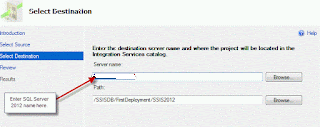
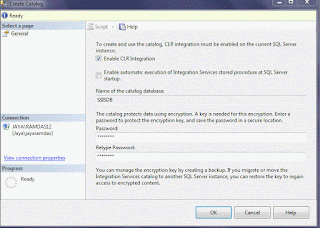
Here if the SSISDB is not present on the server, one needs to created the SSISDB manually. This can be done in SQL Server Management Studio by right clicking on the Integration Services Catalog. Choose the New Catlog Option, the Create Catalog Window opens. In this window one needs to check the Enable CLR Integration so that the catalog can be used. By default the name of the Catalog database is set to SSISDB. There needs to be password entered for the SSISDB catalog database, the reason being the catalog protects data using encryption. Once this complete the Catalog database is complete.
Now going back to the Deployment wizard, the path to the catalog database needs to be entered, it would be something like:
/SSISDB/FirstDeployment/SSIS2012.
Once the information is completed on this screen, the choices can be reviewed in the next screen, then once we proceed to the next screen, the project is ready to deployed and one can see the progress. On successful completion of deployment one can see the package being deployed in the SSISDB catalog.
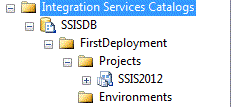


Now going back to the Deployment wizard, the path to the catalog database needs to be entered, it would be something like:
/SSISDB/FirstDeployment/SSIS2012.
Once the information is completed on this screen, the choices can be reviewed in the next screen, then once we proceed to the next screen, the project is ready to deployed and one can see the progress. On successful completion of deployment one can see the package being deployed in the SSISDB catalog.
Friday, August 3, 2012
SSISDB Catalog-SSIS 2012
There have been lot of changes made in SSIS 2012, some of which I have blogged earlier. One of the key areas of change has been the deployment section. When a Integration Services 2012 is configured along with the Integration Server, there is a new Catalog which is the key point for getting information about the SSIS packages deployed to the Integration Server. There are several categories of SSIS packages which have been addressed in the SSISDB catalog. This is different from the system tables that are available in MSDB database. The focus of the SSIDB catalog is to enable the administrators to handle the SSIS packages better. Let us focus on the different tools available to focus on categories of troubleshooting.
In case one needs to get information about the performance and execution information of SSIS package, we have the following catalogs that can be used.
catalog.executions
catalog.execution_component_phases
catalog.executable_statistics
dm_execution_performance_counters.
All of the above objects provide vital information about an SSIS package. Currently SSIS is being used in lot of big ETL operations, so getting information about the packages in terms of execution speed is very vital. As always performance of ETL is very critical when it comes to data availability. The other area of troubleshooting category is the ability to Add,Query and remove data taps in a SSIS package Data flow.
Here are the objects that can be used.
catalog.add_data_tap
catalog.add_data_tap_by_guid
catalog.remove_data_tap
catalog.execution_data_taps
catalog.execution_data_statistics
In Summary the addition of the SSISDB datalog to SSIS 2012 provides a lot of productive tools in order to administer SSIS packages.
In case one needs to get information about the performance and execution information of SSIS package, we have the following catalogs that can be used.
catalog.executions
catalog.execution_component_phases
catalog.executable_statistics
dm_execution_performance_counters.
All of the above objects provide vital information about an SSIS package. Currently SSIS is being used in lot of big ETL operations, so getting information about the packages in terms of execution speed is very vital. As always performance of ETL is very critical when it comes to data availability. The other area of troubleshooting category is the ability to Add,Query and remove data taps in a SSIS package Data flow.
Here are the objects that can be used.
catalog.add_data_tap
catalog.add_data_tap_by_guid
catalog.remove_data_tap
catalog.execution_data_taps
catalog.execution_data_statistics
In Summary the addition of the SSISDB datalog to SSIS 2012 provides a lot of productive tools in order to administer SSIS packages.
Tuesday, June 19, 2012
SSIS 2012-Data Viewer
As I am exploring SSIS 2012, one of the features which I have used in SSIS is the data viewer functionality. It is one of the ways to find out what data is passing through the data flow task. It gives an idea about the data that is being extracted from source before being committed into the destination table. This feature is useful to get an idea about the data like profiling the data that is being sourced. In SSIS 2008, in order to enable the data viewer, within the data flow task one had to right click on the flow connecting the source and destination, choose the Data viewers option and then choose Add from the Data flow path editor. In SSIS 2012 enabling data viewer has been made simpler. In the data flow task, right click on the path connecting the source and destination, then click on the Enable Data viewer option as illustrated below.
 Once that is done, click the Edit option to edit the columns that need to displayed in the data viewer. In case the data viewer is not added one can disable the option by following the image shown below. Choose the Disable Data viewer option.
 In Summary in this blog post I wanted to show case the data viewer option in SSIS 2012.


Tuesday, June 5, 2012
SSIS 2012 - Deployment Model
In SSIS 2012 there are two deployment models One is package Deployment Model and the new one being introduced is project deployment model. In SSIS 2008 we have been working with the package deployment model. In this model once a SSIS project is created, we have a project folder under which we have sub folders like Data Sources, Data Source Views and SSIS packages. In SSIS 2012 when we create a SSIS project it is by default created in the Project Deployment Model. In the Snapshot below we see Project Params, Connection Managers , SSIS packages and Miscellaneous.
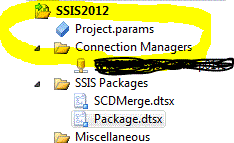 This is where the new deployment Model has it s advantages: As one can see there is no data Source folder instead we have a Connection Manager folder. In this folder all the connections used by a package can be placed. This is done by : In the connection manager tab right click on a connection and choose the Convert to Project Connection.
 Once this option is chosen the connection is added to the Connection Manager folder. Now the connections available in the connection manager folder are available for other SSIS packages with in the SSIS project. This becomes very useful since if a connection has to change it needs to be done to connection once within the Connection Manager folder, then the changes are visible to all the other packages that use connection within the project. In a nut shell Project Deployment options provides flexibility while working with many packages within a SSIS project.

Wednesday, May 16, 2012
Expression Task-SSIS 2012
As I Continue to explore the features of SSIS 2012, I have noticed some new components which are available. One of the new tasks which is available in the control flow tab is the Expression task. We are all familiar with expressions which use within each component to evaluate a certain condition or to assign properties with a value. In SSIS 2012 Expression Task does the same thing as Expressions but it is in the form of a task. The Expression task is available in the control flow and one just needs to drag and drop it to the control flow. Once the task is place in the control flow, Right click on the task and choose Edit. This would open up the familiar Expressions window. One of the new things in this window is that Parameters can also be accessed along with the variables. One could check the value of a Parameter in the Expression Task and then in the workflow one can check the value of the Parameter by using expressions in the workflow. I have attached a sample Control flow which utilises the Expression Task.
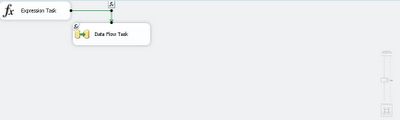
In a Nutshell the Expression Task can be used to control the workflow and gives Expressions a higher visibility by being a Task. This gives Expressions a higher visibility in SSIS 2012 compared to earlier versions where they were associated with the Component itself.
One can also notice in the image above that there is a slider component on the design surface This gives the developers the ability to zoom in on the flows being developed. In cases where the SSIS flows become very complex, the slider control can be useful to focus in areas that need to understood or edited.

In a Nutshell the Expression Task can be used to control the workflow and gives Expressions a higher visibility by being a Task. This gives Expressions a higher visibility in SSIS 2012 compared to earlier versions where they were associated with the Component itself.
One can also notice in the image above that there is a slider component on the design surface This gives the developers the ability to zoom in on the flows being developed. In cases where the SSIS flows become very complex, the slider control can be useful to focus in areas that need to understood or edited.
Tuesday, May 1, 2012
SSIS 2012
Once I had the SQL Server 2012 Bi edition installed I decided to start creating a SSIS package in SQL Server 2012. As mentioned in my previous blog post BIDS has now a new name called SQL Server Data Tools. On launching the SQL Server Data Tools one can customize the setting for Business Intelligence projects. I created a New SSIS project and created a new package. I created a new data flow task with a source has a flat file and destination as a sql server destination. In the Data flow tab I noticed some new things. One of the new things i noticed was Favorites section, this has a Source Assistant and a Destination Assistant. These
 two tasks would help the developer with creating a source and destination connection. One of the other new source which i notice in the source connections was the availability of a CDC source. The CDC source reads change data from a SQL Server change table making it available for processing by downstream data-flow components. As I build out package I will be posting blog entries detailing the new features available.

Monday, April 23, 2012
SQL Server 2012-BI Edition
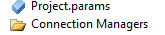
I finally got to download the BI Edition of SQL Server 2012, this edition is new in SQL Server. The edition is focused on tapping the new features that have been added to the BI landscape. There were certain new features which i noticed in SQL Server 2012 BI edition. I choose to install the SQL Server DB engine,SSAS,SSRS and Integration Services. SSRS install has gone through a revision, there are new features added to SSRS sharepoint mode which is to facilitate the install and execution of Powerviewer. In SSAS the server can be configured in two modes 1. The regular multi dimensional and data mining mode. 2. The tabular mode, in this mode SSAS server would handle self service BI capabilities. Based on these two options, in case a business needs to handle both then i guess there would be two instances of SSAS one handling the regular MOLAP capability and the other Server would handle the self service piece. It is pretty evident that both the modes cannot coexsist on the same SSAS server. Integration Services and BIDS have gone thorugh a change in this edition. Int the programs under SQL Server 2012, one gets to see a new program called SQL Server Data Tools, this is the new name for BIDS. On launcching the SQL Server Data tools it opens a VS 2010 Shell and it can be customized for Business Intelligence Development. Once the VS 2010 shell has been customized and if you choose the option New Project and the project type is Integration Services Project, there are some elements which appear in the design page of SSIS package. In SSIS 2012 one of the main new features is the addition of Parameters which is available at the Project level and the Package Level. In the Solution Explorer one gets to see the Project Parameters like in the image show below. The project parameters is named Project.params.
 In the main design page of the SSIS package one gets to the addition of an extra tab called Parameters.
The third tab (the one after Data flow tab is the Parameter tab) is the screen to add parameters.

Based on the initial looking around in SSIS 2012 parameters has a big role to play. As i continue to explore I will blog about the usefulness of Parameters in SSIS 2012.
The third tab (the one after Data flow tab is the Parameter tab) is the screen to add parameters.

Based on the initial looking around in SSIS 2012 parameters has a big role to play. As i continue to explore I will blog about the usefulness of Parameters in SSIS 2012.
Friday, February 10, 2012
SSIS-SQL Server 2012
As SSIS continues to be used and grow in different business areas for the purpose of ETL, there are lots of improvements made in SSIS-SQL Server 2012. The improvements have been made in different areas, one of them is called a feature called Data Tap. In SSIS when working on Data flows, in order to get an idea of what data is flowing through the process, we use Data Viewer. One of the issues with the Data Viewer is that if the data had to saved off to a file location it was not possible. When doing data analysis/SSIS debugging it would be nice to save of the data coming through the process. In order to address this GAP a feature called Data Tap has been introduced. Using T-SQL one can programatically add atap to any data flow within the SSIS package. This feature would allow one to trap issues occurring in production and perform more effective troubleshooting.
BI Expert Rafael Salas has explained this in more detail in his blog here:
http://www.rafael-salas.com/2012/01/ssis-2012-quick-peek-to-data-taps.html
This is a very neat feature which would be used for effective troubleshooting of SSIS packages. The nice thing is that the DBA can run scripts and add data taps.
BI Expert Rafael Salas has explained this in more detail in his blog here:
http://www.rafael-salas.com/2012/01/ssis-2012-quick-peek-to-data-taps.html
This is a very neat feature which would be used for effective troubleshooting of SSIS packages. The nice thing is that the DBA can run scripts and add data taps.
Subscribe to:
Comments (Atom)